
當點擊 小影片,使用 Vue Router 的 push() 到其他頁面顯示 大影片,需先釋放 <video>,然後再新的頁面直接使用 autoplay 播放即可。
Version
Vue 3.4
HTML 5
Video
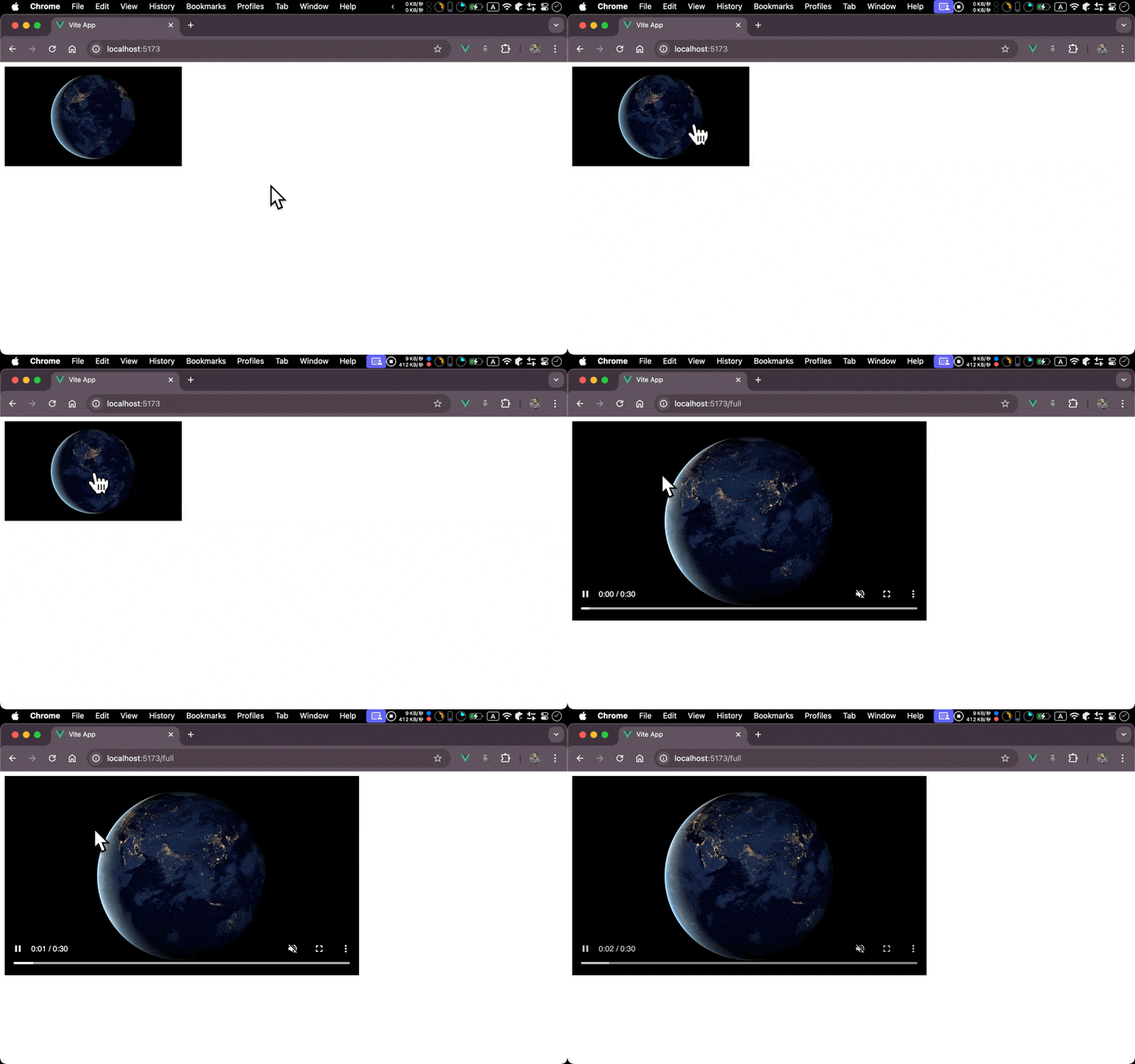
- 使用
<video>顯示 mp4 - 點擊影片後,跳轉到新的一頁,以
較大尺寸顯示同一個 mp4,
Home
HomeView.vue
<template>
  <video ref="video1" class="video1" autoplay src="@/assets/earth.mp4" @click="onClick" />
</template>

<script setup>
import { ref } from 'vue'
import { useRouter } from 'vue-router'

let { push } = useRouter()

let video1 = ref(null)

let onClick = () => {
  video1.value.pause()
  video1.value.removeAttribute('src')
  video1.value.load()

  push({
    name: 'about'
  })
}
</script>

<style scoped>
.video1 {
  width: 320px;
  height: 180px;
  cursor: pointer;
}
</style>
Line 2
<video ref="video1" class="video1" autoplay src="@/assets/earth.mp4" @click="onClick" />
- 使用
<video>顯示 mp4 autoplay:自動播放 mp4
Line 13
let onClick = () => {
  video1.value.pause()
  video1.value.removeAttribute('src')
  video1.value.load()

  push({ name: 'full' })
}
push():使用 Vue Router 跳轉到其他頁面- 在
push()之前,先清除<video>的 resourcevideo.pause():暫停 mp4 的播放video.removeAttribute('src'):移除src停止繼續加載 mp4video.load():reset video element
Full
FullView.vue
<template>
  <video ref="video" class="video1" autoplay controls src="@/assets/earth.mp4" />
</template>

<style scoped>
.video1 {
  width: 640px;
  height: 360px;
}
</style>
Line 2
<video ref="video" class="video1" autoplay controls src="@/assets/earth.mp4" />
autoplay:自動播放 mp4controls:顯示下方進度條
Conclusion
- 使用
push()跳頁前pause()、removeAttribute()與load()也是必要的,否則跳頁後的autoplay不會執行 <video>可使用 HTML 的autoplay或 JavaScript 的video.play()播放,但是只能選擇其一,不能混合使用,否則會出現The play() request was interrupted錯誤訊息
Reference
Chome for Developers, DOMException - The play() request was interrupted