
水平靠右為實務上常見需求,CSS 可由多種方式實現。
Version
CSS 3
text-align: right
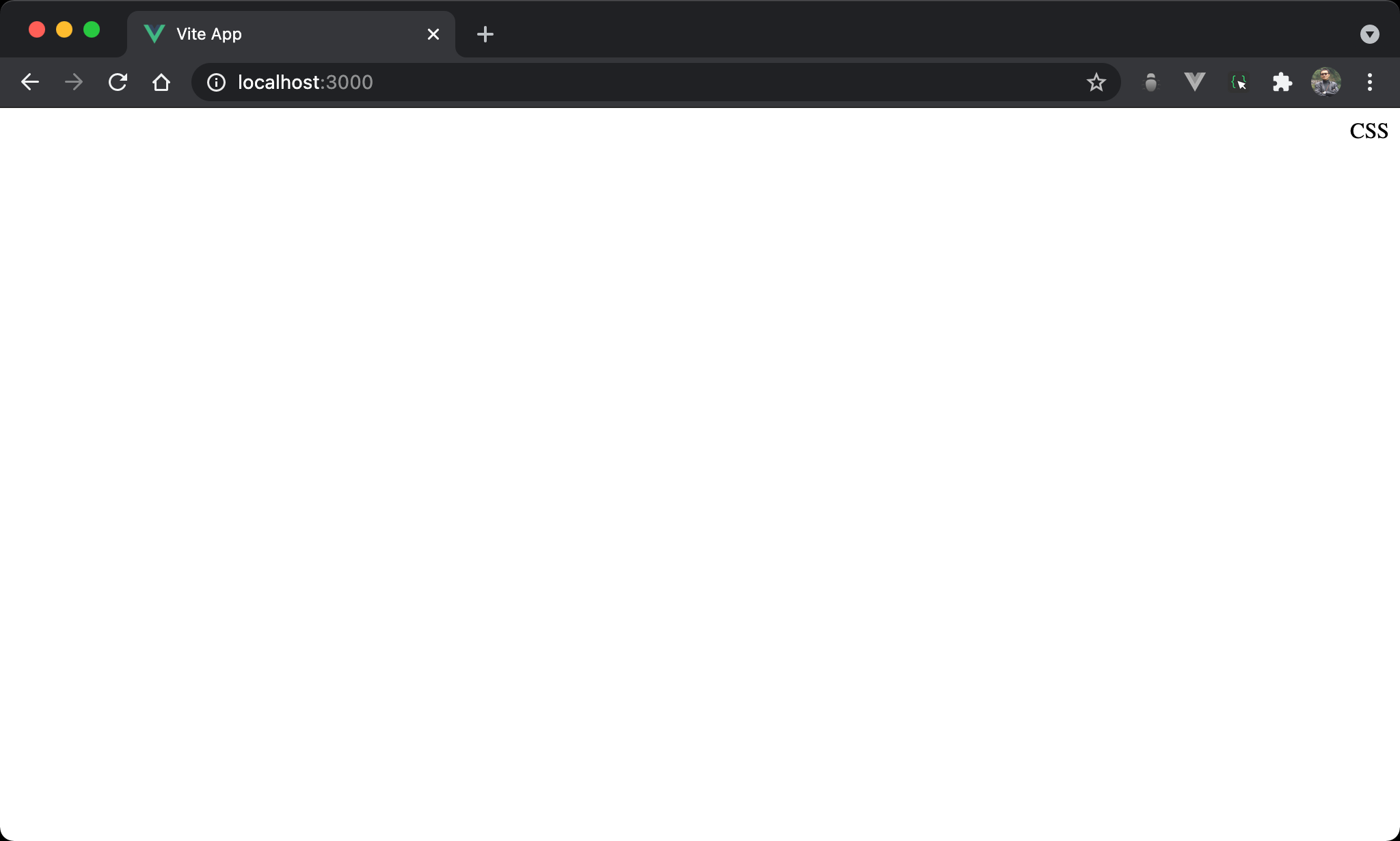
使用最簡單直覺的 text-align: right 使 CSS 水平靠右。
<template>
  <div class="box">
    CSS
  </div>
</template>

<style scoped>
.box {
  text-align: right;
}
</style>
第 8 行
.box {
  text-align: right;
}
設定父層 box style:
text-align: right:<div>為 block 會佔據一整行,直接使用text-align: right讓 content 水平靠右於<div>
margin: auto
width: fit-content
水平置中另一個直覺思維就是使用 margin-left: auto 自動調整 left margin 而水平靠右。
但有個前提是 content 的 <div> 必須內縮與 content 同寬,margin-left: auto 才有動態調整 margin 空間。
<template>
  <div class="box">
    CSS
  </div>
</template>

<style scoped>
.box {
  width: fit-content;
  margin-left: auto;
}
</style>
第 6 行
.box {
  width: fit-content;
  margin-left: auto;
}
設定父層 box style:
width: fit-content:width 與 content 同寬,但仍維持其 block 特性,讓margin: auto有操作空間margin-left: auto:自動調整 left margin 而水平靠右
display: flex
為了讓 <div> 與 content 同寬,另一個技巧是父層 box 引入 Flexbox 使子層 item 與 content 同寬。
<template>
  <div class="box">
    <div class="item">
      CSS
    </div>
  </div>
</template>

<style scoped>
.box {
  display: flex;
}

.item {
  margin-left: auto;
}
</style>
第 2 行
<div class="box">
  <div class="item">
    CSS
  </div>
</div>
父層使用 box,內層使用 item。
第 8 行
.box {
  display: flex;
}
設定父層 box style:
display: flex:為了要使<div>能與 conent 同寬有 margin 可操作水平靠右
12 行
.item {
  margin-left: auto;
}
設定子層 item style:
margin-left: auto:由於<div>與 content 同寬,因此可自動調整 left margin 而水平靠右
Flexbox
justify-content: flex-end
CSS 水平靠右,使用 justify-content 系列。
<template>
  <div class="box">
    CSS
  </div>
</template>

<style scoped>
.box {
  display: flex;
  justify-content: flex-end;
}
</style>
第 8 行
.box {
  display: flex;
  justify-content: flex-end;
}
設定父層 box style:
display: flex:子層 item 使用 Flexboxjustify-content: flex-end: 直接將<div>水平靠右
justify-content: flex-start
CSS 水平靠右,一樣使用 justify-content 系列。
<template>
  <div class="box">
    CSS
  </div>
</template>

<style scoped>
.box {
  display: flex;
  flex-direction: row-reverse;
  justify-content: flex-start;
}
</style>
第 8 行
.box {
  display: flex;
  flex-direction: row-reverse;
  justify-content: flex-start;
}
設定父層 box style:
display: flex:一樣使用 Flexboxflex-direction: row-reverse:<div>從右向左justify-content: flex-start: 從開始之處排序,由於<div>從右向左,相當於水平靠右
實務上不會使用這種方式,只是展示亦可使用
justify-content: flex-start達成水平靠右
flex-grow: 1
CSS 水平靠右,但在子層 item 處理。
<template>
  <div class="box">
    <div class="empty"/>
    <div>CSS</div>
  </div>
</template>

<style scoped>
.box {
  display: flex;
}

.empty {
  flex-grow: 1;
}
</style>
第 2 行
<div class="box">
  <div class="empty"/>
  <div>CSS</div>
</div>
需要兩個子層 item。
第 9 行
.box {
  display: flex;
}
設定父層 box style:
display: flex:子層 item 使用 Flexbox
13 行
.empty {
  flex-grow: 1;
}
設定子層 empty style:
flex-grow: 1:表示空白部分剩餘 width 將由此<div>平分,因此看起來為水平靠右
Fixed Position
CSS 水平靠右,但使用 fixed position 處理。
<template>
  <div class="box">
    CSS
  </div>
</template>

<style scoped>
.box {
  width: fit-content;
  position: fixed;
  left: 0;
  right: 0;
  margin-left: auto;
}
</style>
第 8 行
.box {
  width: fit-content;
  position: fixed;
  left: 0;
  right: 0;
  margin-left: auto;
}
設定父層 box style:
width: fit-content:width 與 content 同寬,但仍維持其 block 特性,讓margin: auto有操作空間position: fixed:使用 fixed positionleft: 0、right: 0:要使用margin: auto水平靠右,前提必須要有空間使其調整 margin,left: 0於左側邊緣緊貼 browser,right: 0於右側邊緣緊貼 browser,因此相當於架構出無形的矩形空間,只是受限於width: fit-content只顯示與 content 同寬部分,剩下空間可由margin: auto自由發揮而水平靠右margin-left: auto:自動調整 left margin 而水平靠右
Absolute Position
CSS 水平靠右,但使用 absolute position 處理。
<template>
  <div class="box">
    CSS
  </div>
</template>

<style scoped>
.box {
  width: fit-content;
  position: absolute;
  left: 0;
  right: 0;
  margin-left: auto;
}
</style>
第 8 行
.box {
  width: fit-content;
  position: absolute;
  left: 0;
  right: 0;
  margin-left: auto;
}
設定父層 box style:
width: fit-content:width 與 content 同寬,但仍維持其 block 特性,讓margin: auto有操作空間position: absolute:使用 absolute position,因為其父層皆沒設定定位,相當於定位在windowleft: 0、right: 0:要使用margin: auto水平靠右,前提必須要有空間使其調整 margin,left: 0於左側邊緣緊貼 browser,right: 0於右側邊緣緊貼 browser,因此相當於架構出無形的矩形空間,只是受限於width: fit-content只顯示與 content 同寬部分,剩下空間可由margin: auto自由發揮而水平靠右margin-left: auto:自動調整 left margin 而水平靠右
Relative Position
CSS 水平靠右,但使用 absolute position 處理。
<template>
  <div class="box">
    <div class="item">
      CSS
    </div>
  </div>
</template>

<style scoped>
.box {
  position: relative;
}

.item {
  position: absolute;
  right: 0;
}
</style>
第 2 行
<div class="box">
  <div class="item">
    CSS
  </div>
</div>
需使用兩層 HTML。
10 行
.box {
  position: relative;
}
設定父層 box style:
position: relative:父層 box 使用 relative position,子層 absolute position 將以此層定位
14 行
.item {
  position: absolute;
  right: 0;
}
設定子層 item style:
position: absolute:子層 item 使用 absolute positionright: 0:設定right為0,相當於水平靠右
Conclusion
- CSS 擁有多種方式水平靠右:
text-align: center、margin: auto、Flexbox 、 Fixed Position 與 Absolute Position,可視實際需求靈活運用